What image to image AI is
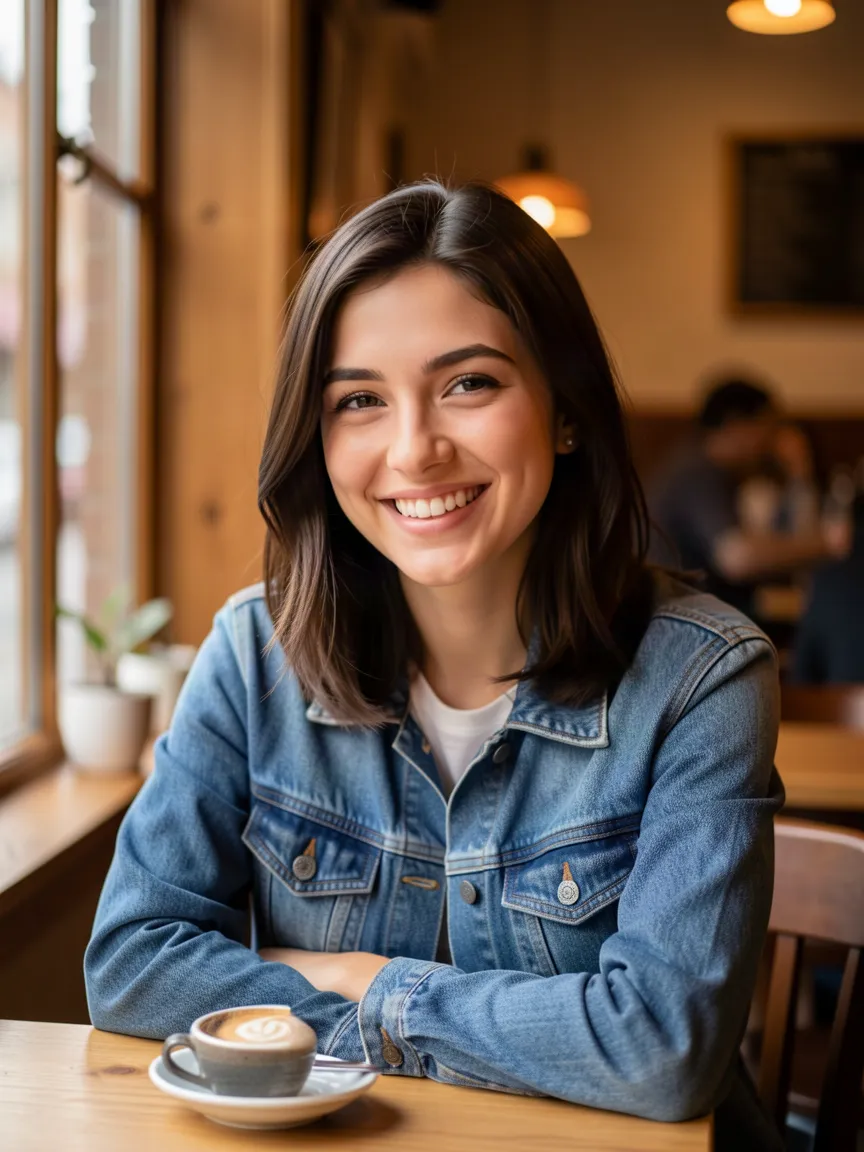
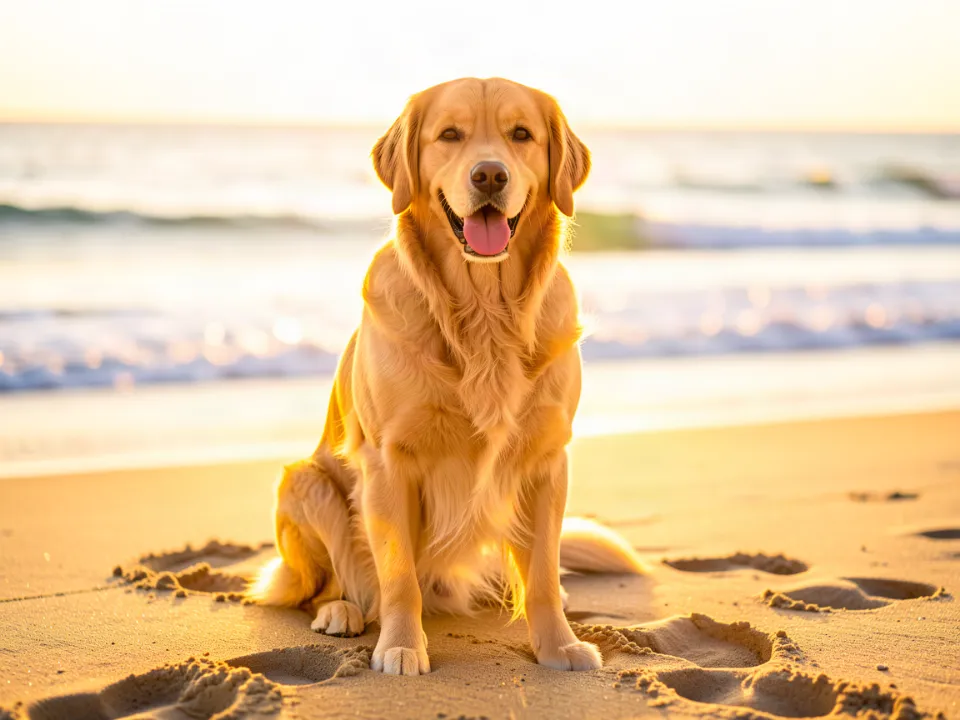
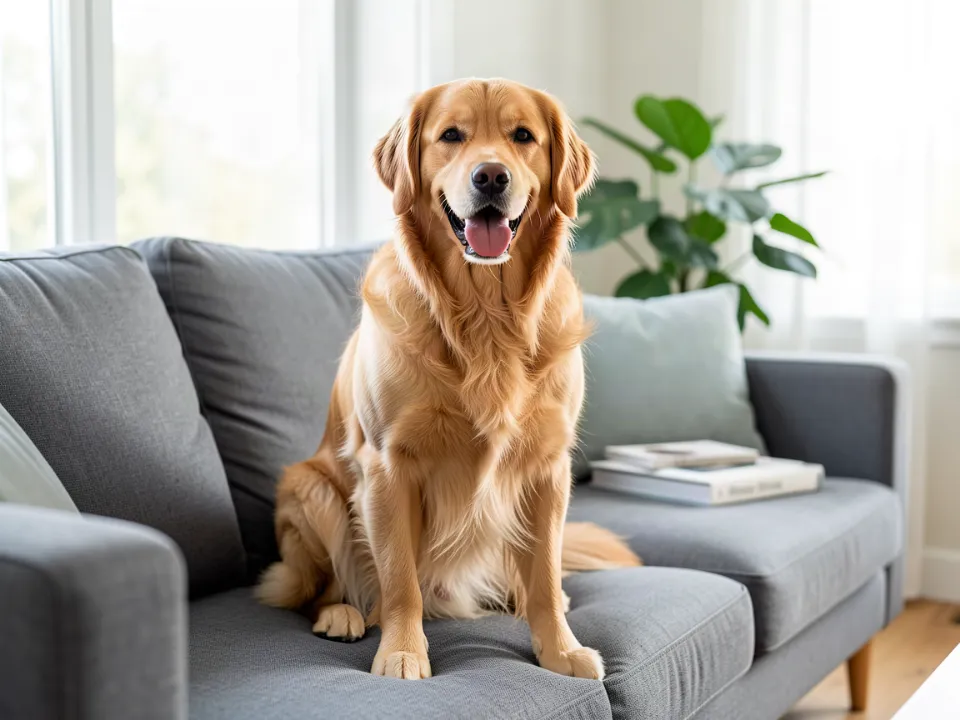
Most AI image generators start from a blank canvas and a paragraph of text. You describe a scene, the model invents one, and you hope it looks like what you pictured. Image to image AI works the other way round. You start with a picture you already have, a portrait, a pet, a product shot, a room or a sketch, and you tell the AI what to change. The model keeps what makes the picture yours, the person, the pose, the framing and the layout, and redraws only the part you asked about.
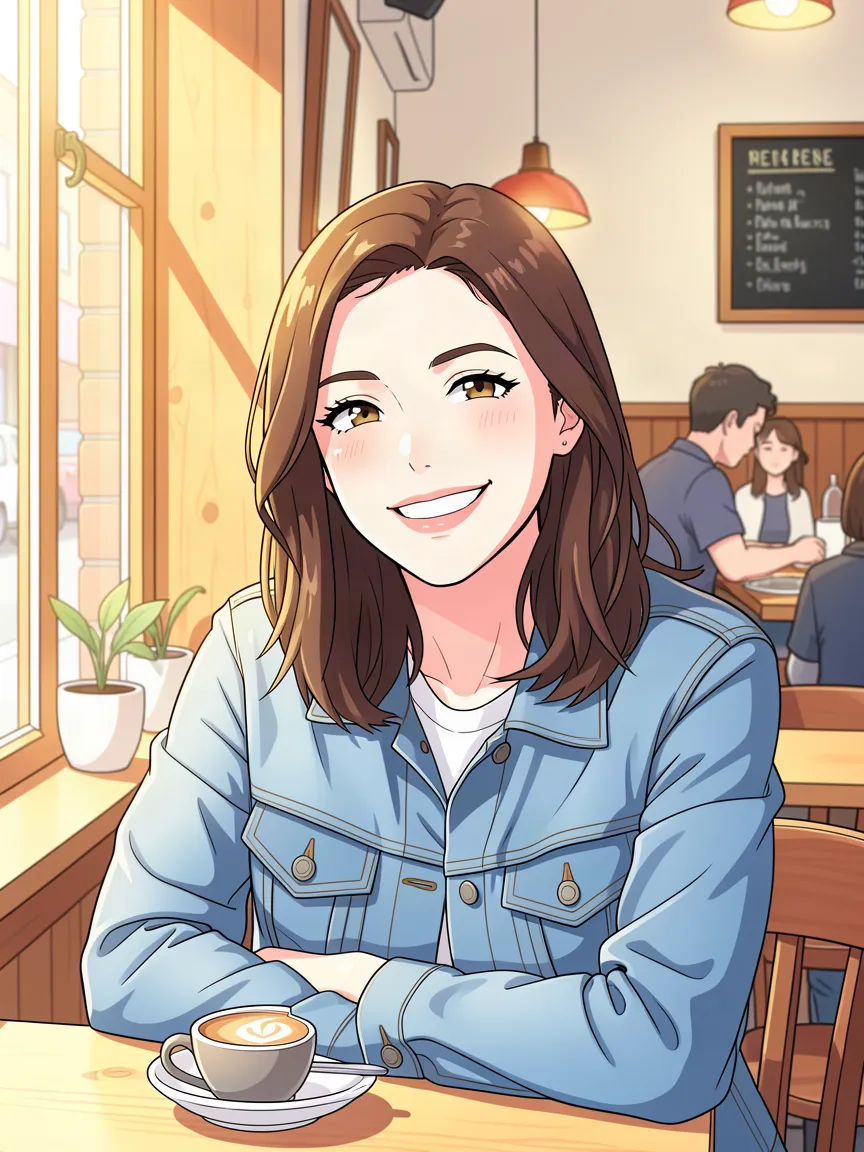
That small difference matters a lot in practice. With text to image you spend most of your time fighting to get the subject right. With an AI image to image generator the subject is already right, because it came from your photo. You can focus on the creative part: turning a selfie into an anime character, a product photo into a clean catalog shot, or a summer street into the same street under snow.
How it works
Using the tool above takes three steps and usually less than a minute.
- Upload a photo. Choose a JPG, PNG or WebP file up to 10 MB, or drop it onto the upload area. A sharp, well-lit picture with a clear main subject gives the most reliable results.
- Pick a style or describe the change. Select a preset such as Anime, Pencil sketch, Watercolor or Change background, and the instruction box fills in for you. You can edit that text or write your own in plain English.
- Generate and download. Select Generate image. Most results arrive in under 15 seconds. Download the image at full size, or select Try another style to run a new version from the same photo.
Behind the scenes, your photo and instruction go to an image editing model. The free tier uses FLUX.2 [klein], a fast editing model from Black Forest Labs. Editing models are trained to follow instructions about an existing image rather than to invent a new one, which is why they hold on to faces, shapes and perspective so well.
What people make with it
Image to image AI is useful any time you like a photo but want it to look different. These are the edits we see most often:
Art styles
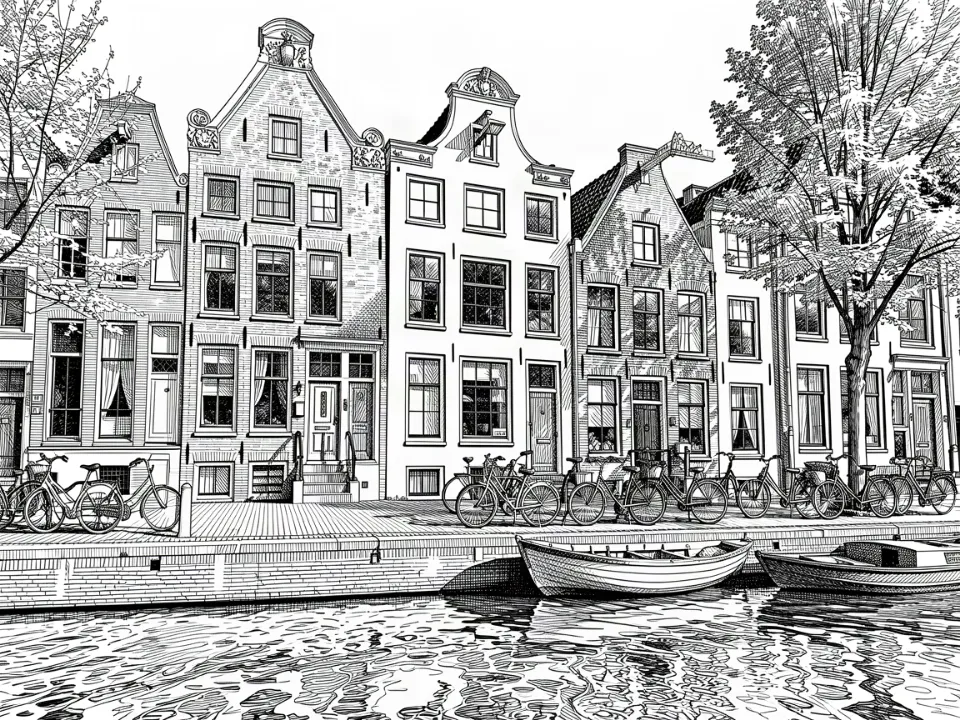
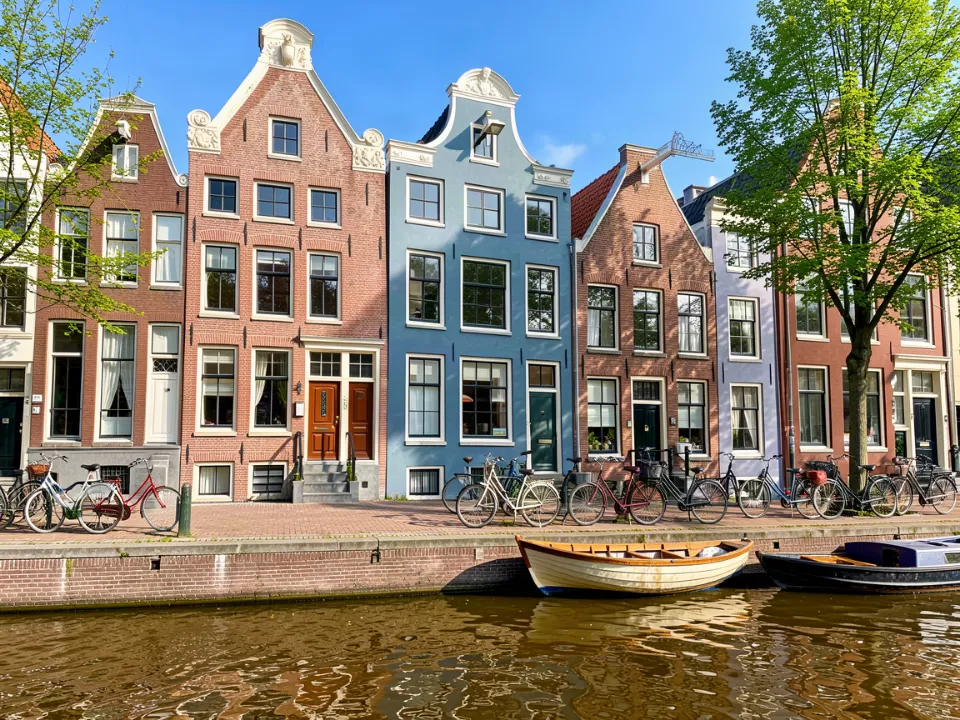
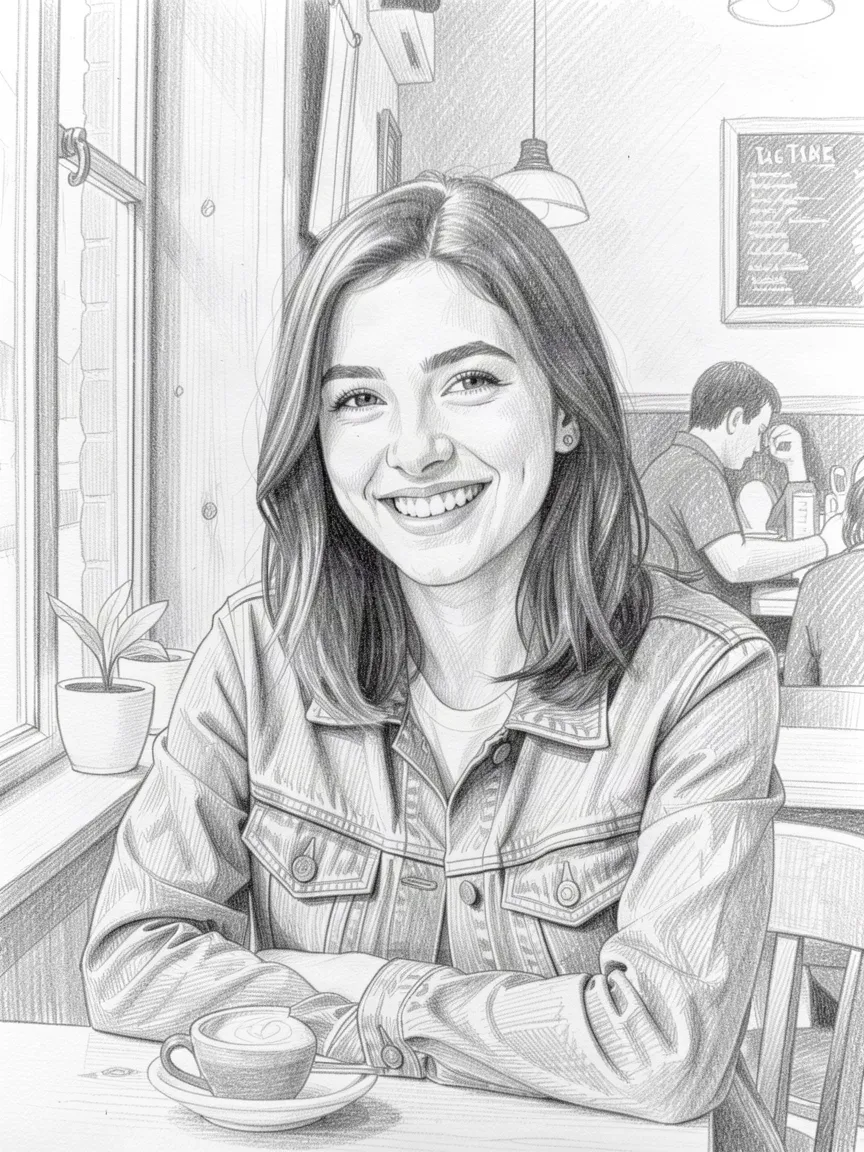
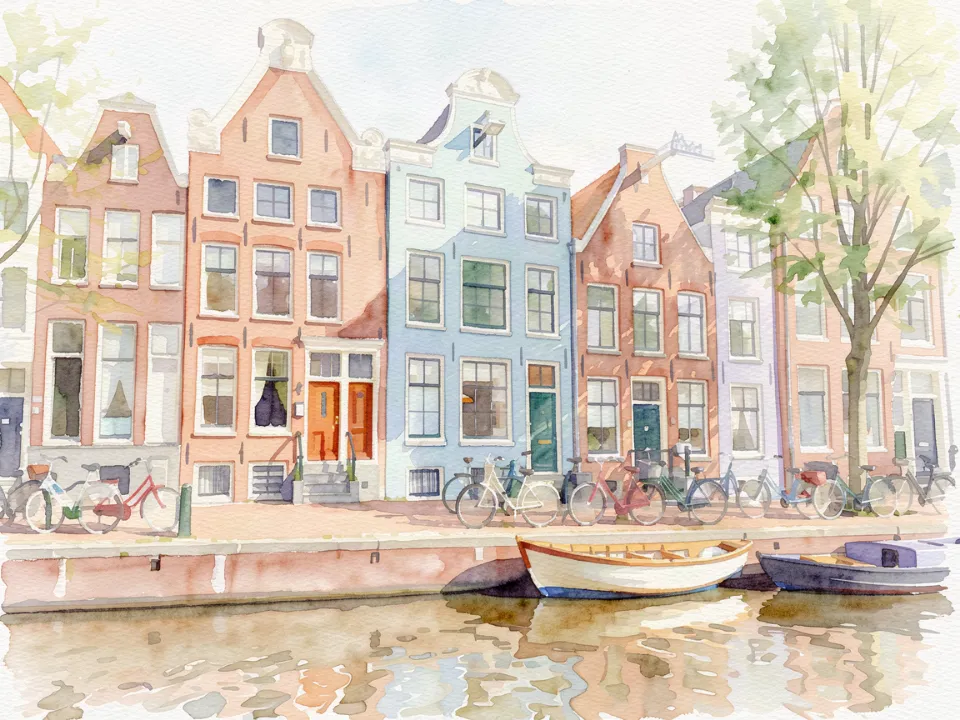
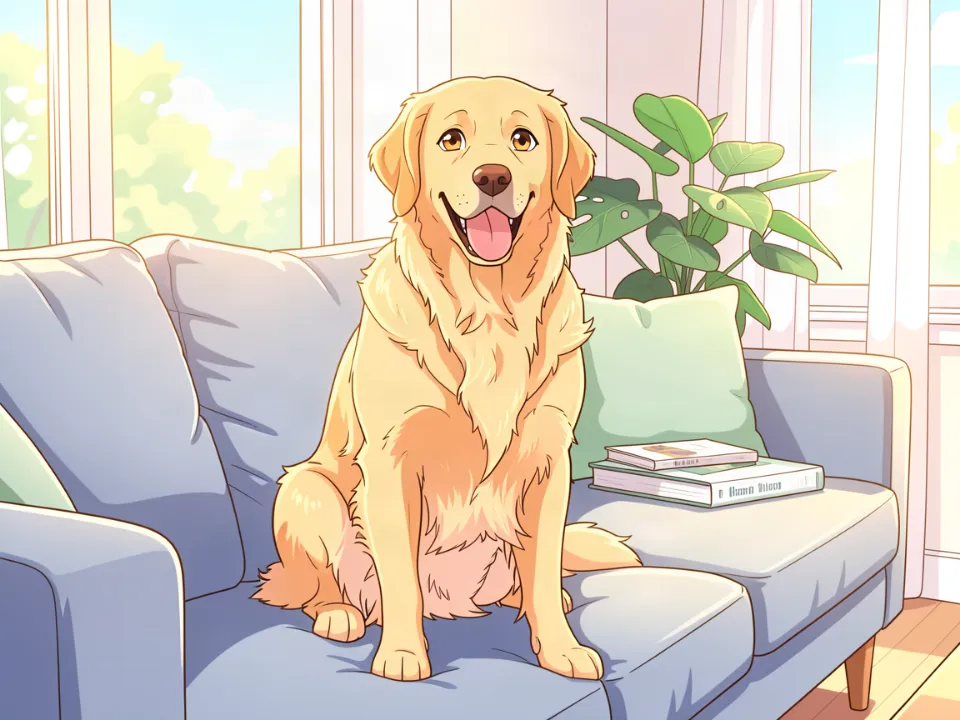
Turn a photo into an anime illustration, a 3D cartoon, a watercolor painting or a pencil sketch. Style changes are popular for profile pictures, gifts, wall prints and greeting cards, because the result still looks like the real person or pet. Try the dedicated photo to anime and image to sketch tools for those two looks.
New backgrounds
Replace a cluttered room with a clean studio backdrop, put a product on a marble counter, or move a portrait to a beach at sunset. The AI background changer keeps the subject in place and repaints only what is behind it, with lighting that matches.
Light, season and mood
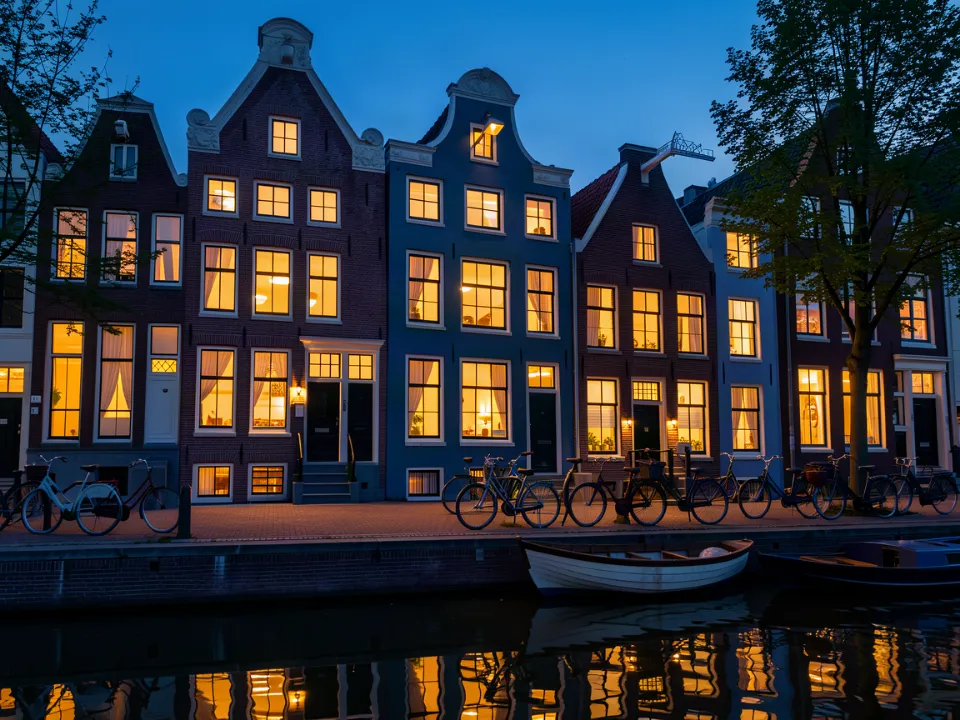
Change daytime to golden hour or night, add snow or autumn leaves, or make a gray sky blue. These edits keep every building and tree where it is, which makes them handy for real estate drafts, travel posts and mood boards.
Product and listing photos
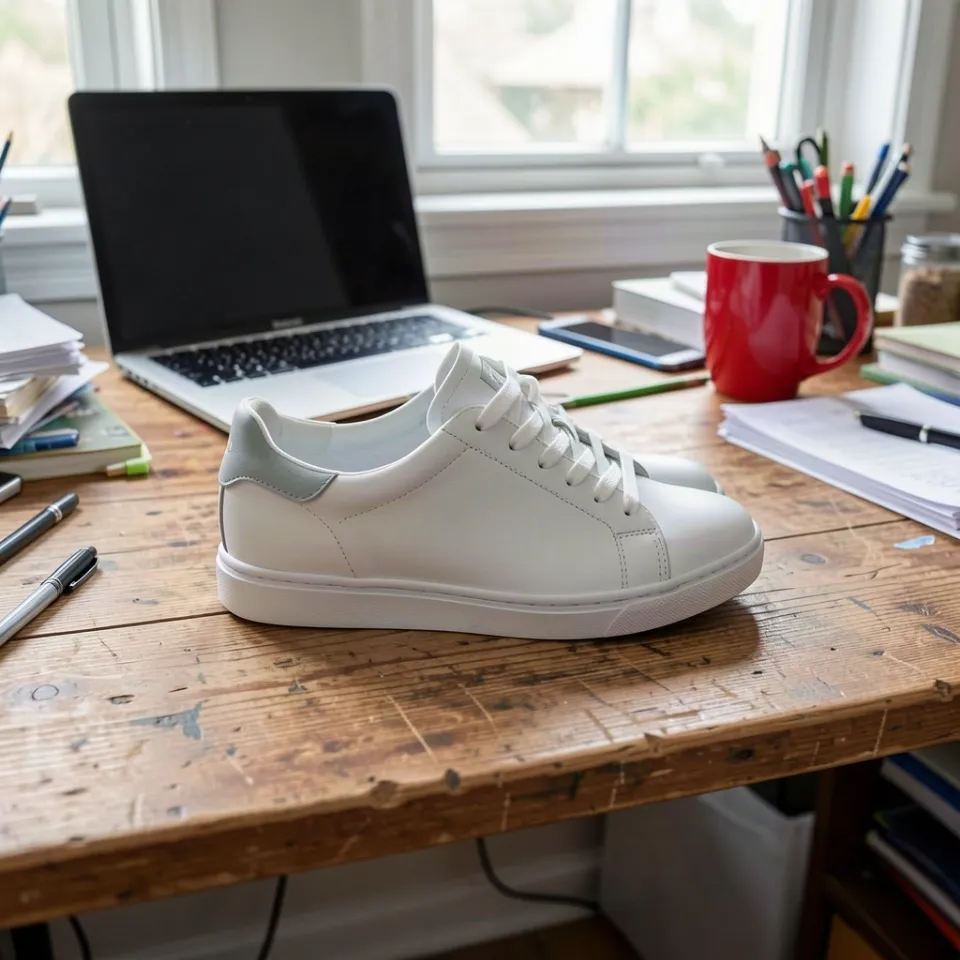
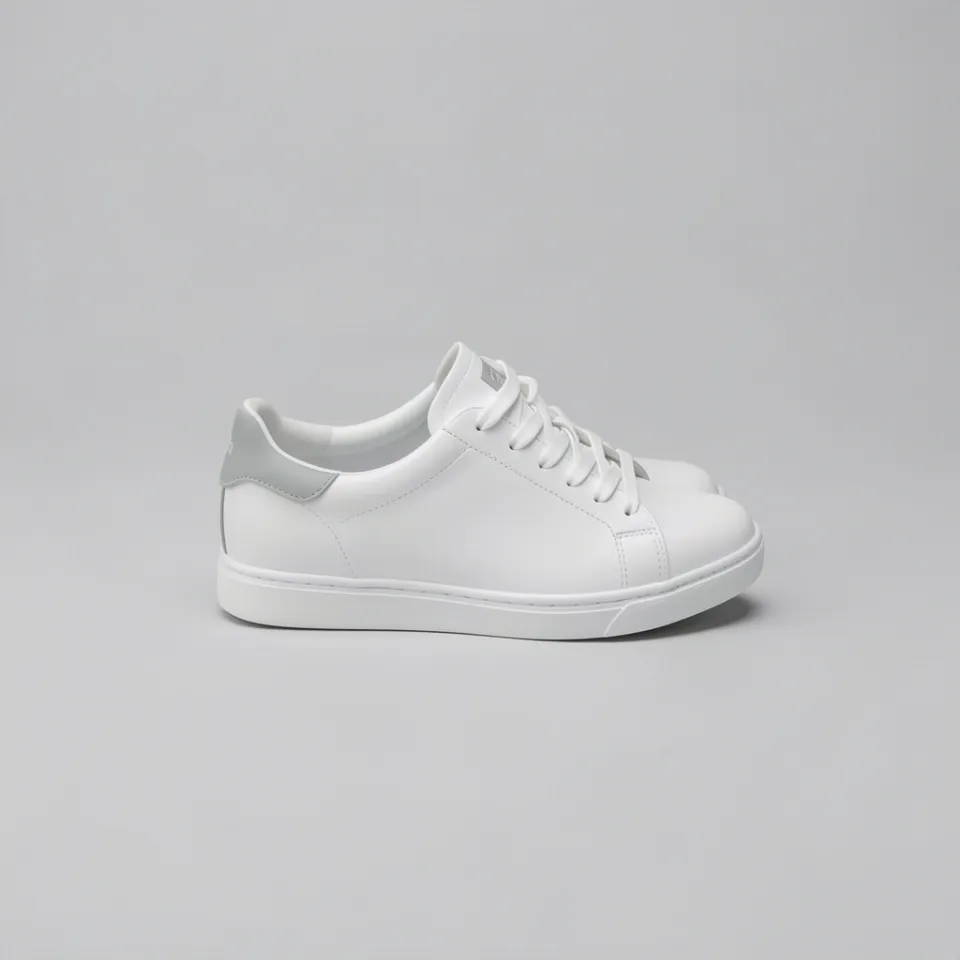
Small sellers use image to image AI to make phone photos look consistent: the same white background, soft shadows and centered framing across a whole catalog, without renting a studio.
Prompts that work
The instruction is the most important part of an image to image edit. Short, concrete prompts beat long, poetic ones. A good prompt says what to change, what to keep, and what the result should feel like.
- Name the change first. “Replace the background with a white studio backdrop” is clearer than “make it look professional”.
- Say what must stay the same. Add “keep the same face, pose and clothing” or “keep the composition exactly the same” when it matters.
- Change one thing at a time. If you want a new style and a new background, do them in two passes. The model follows one clear instruction better than three mixed ones.
- Describe the look, not the tool. “Soft watercolor with visible paper texture” gives the model more to work with than “watercolor filter”.
- Rephrase instead of repeating. If a result misses, adjust the wording. Running the same prompt again tends to give a similar miss.
Example: “Turn this photo into a soft watercolor painting. Keep the same people, pose and framing. Warm afternoon light, white paper texture.”
Free image to image AI, no sign up
There is no account to create and nothing to install. Every visitor gets 2 free generations a day, with no watermark on the download. We keep the free tier fast and sustainable by running it on an efficient editing model, and if a generation fails or is blocked by the safety filter, your free credit is returned automatically so a failed attempt never costs you a turn.
Paid plans for people who need more each day, and for stronger models such as Nano Banana 2.1, are on the pricing page. The free tier will stay free.
Image to image vs text to image
| Image to image | Text to image | |
|---|---|---|
| Starts from | Your photo plus an instruction | A text description only |
| Keeps your subject | Yes, faces, pose and layout stay | No, the subject is invented |
| Best for | Restyling, backgrounds, retouching | New scenes and concept art |
| Tries to get it right | Usually one or two | Often many |
If you already have the picture, image to image is almost always faster. If you are starting from an idea with no reference at all, a text to image model is the better fit.
Your photos and privacy
Your photo is sent to our AI provider only to create your result. We do not use uploads to train models, we do not sell them and we never post them anywhere. Requests involving nudity, minors or real public figures are refused, as are edits meant to deceive or impersonate someone. Read the privacy policy for how data is handled.
Guides
- Nano Banana 2.1: What changed in Google's October 2026 image model.
- Nano Banana 2 vs Pro: Which Nano Banana model to use for editing.